
Purpose: Enroll into Android Enterprise using AirDroid.
1) Factory reset
- Open Settings
- Go to System → Reset options
- Tap Erase all data (enterprise reset)
- Confirm Erase all data
2) Welcome screen
- On the welcome screen, tap Start
3) Connect to Wi-Fi
- Connect the device to your Wi-Fi network
4) Copy apps & data
- When asked to copy apps & data, tap Don’t copy
5) Google Sign-in (Android Enterprise setup)
- On Google Sign in screen, tap the Email or phone field
- Enter:
afw#setup
- Tap Next
6) Organization ownership confirmation
- On the screen “This device belongs to your organization”
- Tap Next
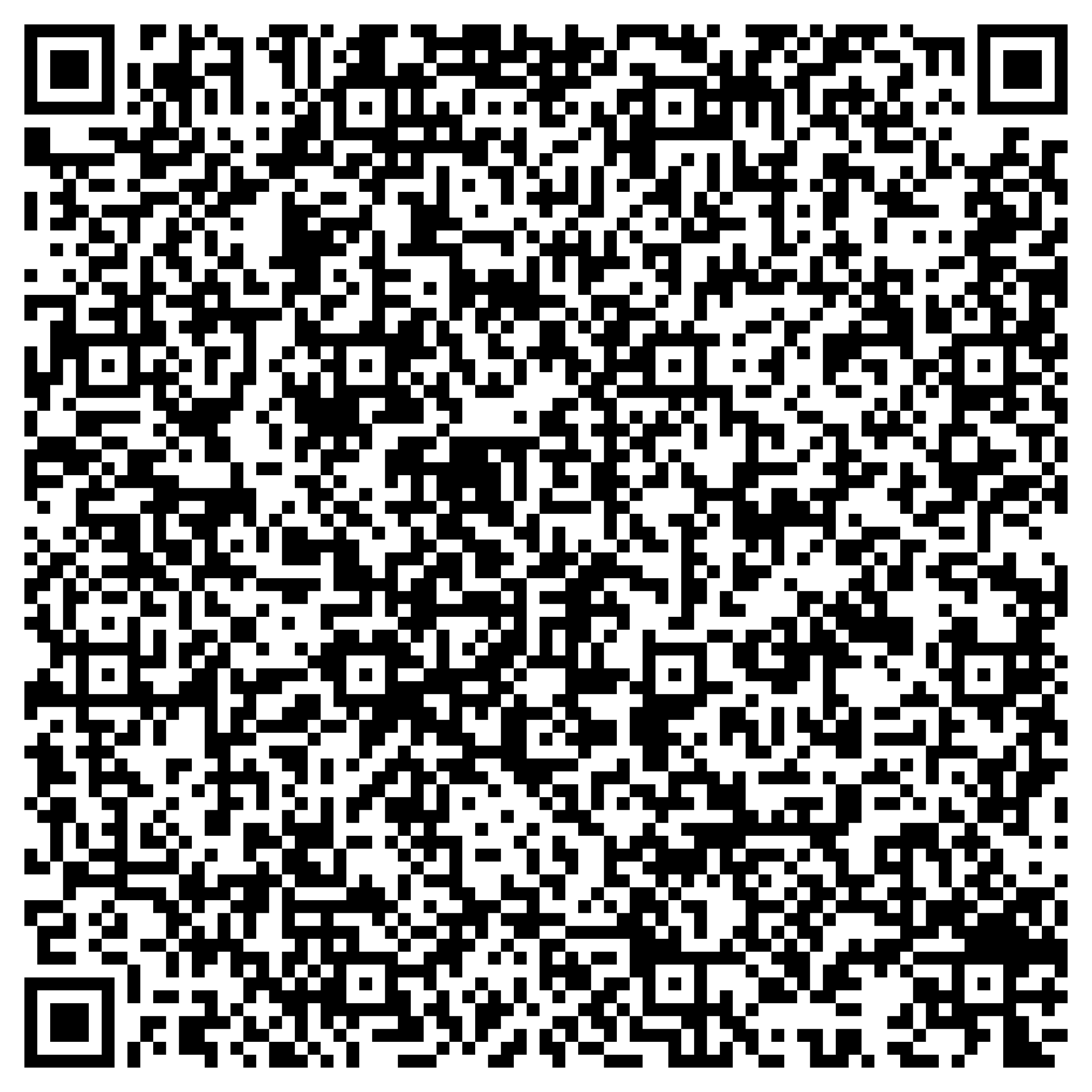
7) Enroll this KC50 (QR code)
- On Enroll this KC50 screen
- Allow camera permission: tap While using the app
- Scan the provided QR code
8) Set up work device
- On “Let’s set up your work device”
- Tap Accept & continue
9) Privacy information
- On “This device isn’t private”
- Tap Next
10) Google services
- Tap Got it
- Tap Accept
11) Select a Home app
- Select aReception AirDroid Enrollment 1
- Tap Biz Daemon
- Tap Always
12) Start Biz Daemon app
- Start the Biz Daemon app
13) Information screen
- Tap Continue
14) Name the device
- On Name the Device screen
- Tap Continue
15) Grant permissions
- Grant all permissions
- Follow the on-screen instructions on the KC50 kiosk
16) Final remote configuration
- For completing the remote configuration, please email support@areception.ai.
Notes
- If you don’t see the QR enrollment step, double-check that you entered
afw#setupcorrectly.
- Keep the device connected to a stable Wi-Fi network (or Ethernet, if available) throughout the enrollment process.
Manual
You can download the PDF manual below: